Guide · Flowers
How to make flower text that grows roses
Flower text usually means a font with petals pasted on. This is different: the garden grows out of your letters as you type, and you can export it as a looping video.
What you will make
Type set in a serif with stems, leaves, buds, thorns and roses growing out of every line, alive with a hand-drawn boil.
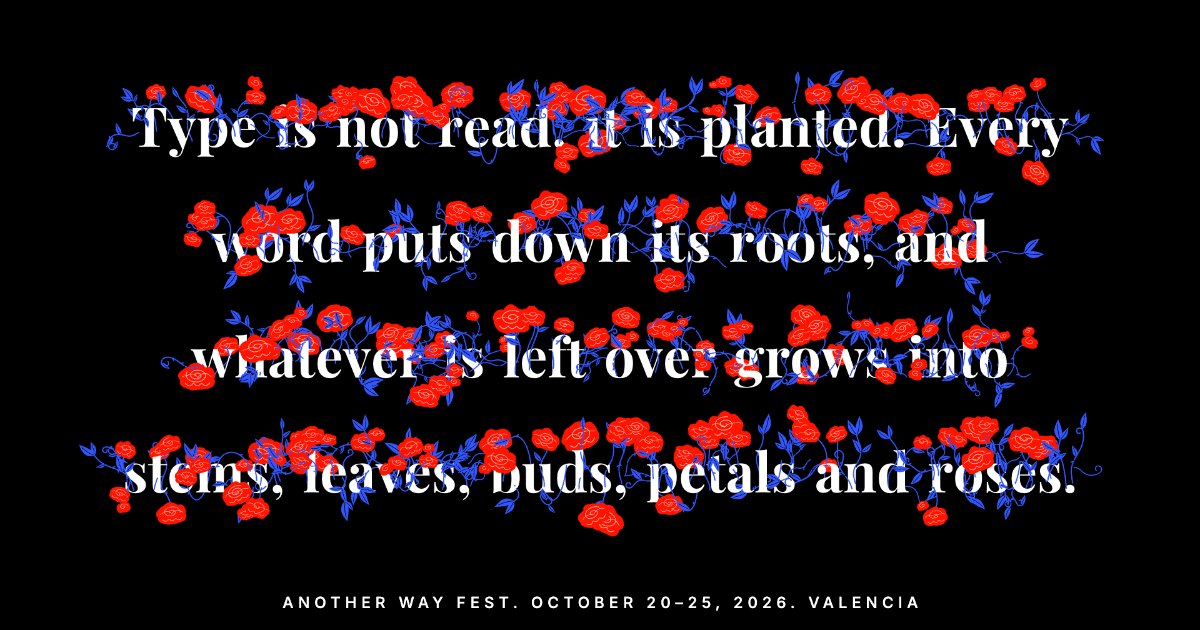
1. Open the Flowers look and type
Go to Flowers in Poster Lab and start typing. Every letter puts down its stems; a space cuts the word and its last letter blooms. Deleting makes the garden wither.
2. Pick a palette
The Type tab opens with ten palettes, from Rose noir (red roses and blue stems on black) to Paper, Midnight, Citrus, Moss, Blush and Mono. The footer, in spaced caps, sits centered under the garden.
3. Shape the garden
In the Flower library, choose which pieces grow: roses, twin buds, fans, leaves, curls, thorns, bridges and branches. Set the density and the rose size.
4. Choose the motion
Keep Typing live, or pick one of seven loops: Breathe, Grow & wither, Typed, Gust, Reach, Scatter and Visitor (a butterfly). Tune how the stems recoil and boil.
5. Export a seamless loop
Press Export and choose WebM: the video records exactly one loop, so it repeats without a jump. Or export a PNG at 4× for print. Everything is drawn as vectors, so it stays sharp at any size.
Credits and pieces
The Flowers look is a port of Type Garden by Akshat Agarwal. Every rose, stem and leaf is in the Flowers kit as SVG.